Scroll ticks
A short, light tick as you scroll, with the wheel or the trackpad.
For Mac and Windows · $0.99 once
Clickwave lives in your menu bar or tray and plays a crisp, satisfying sound every time you click or scroll. 37 voices, from a warm tactile snap to the clunk of an old ball mouse.
Sounds first
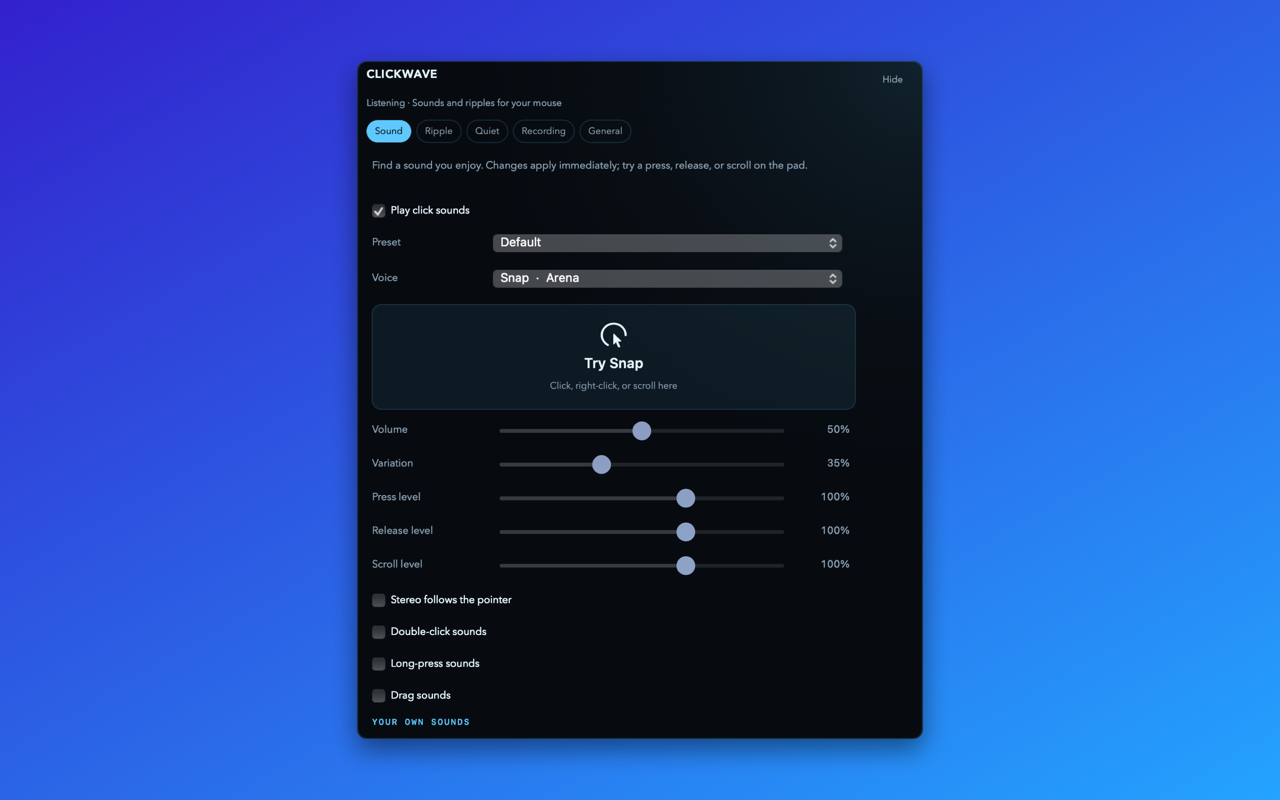
Every sound is synthesized inside the app, tuned to be short and pleasant. Fast clicks overlap naturally, and a limiter keeps a flurry of them from getting loud.
SnapFlickWeightGlass
BezelRattleContactKnock
MuffleThudClothBreathCream
BloopCorkTingArcadeSquishBit
BlockStonesPlipMarblesTine
PenBubblewrapPencilClasp
CurtainSwitchChunkSeekKeystrike
HollowBlubBonesWoo
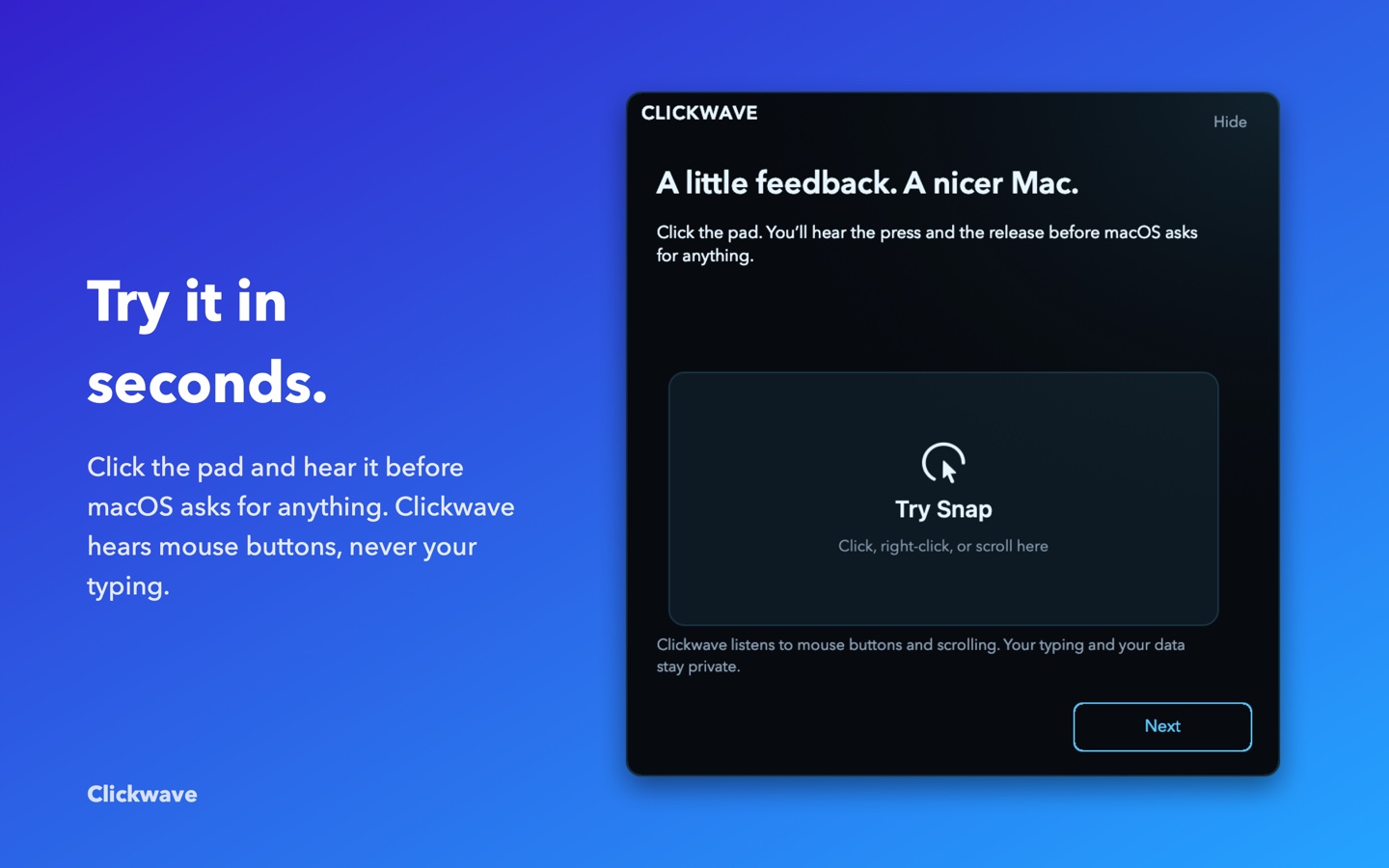
Snap is the default: a short, warm tactile click with a softer release. Switch is the closest thing to an old ball mouse.
A short, light tick as you scroll, with the wheel or the trackpad.
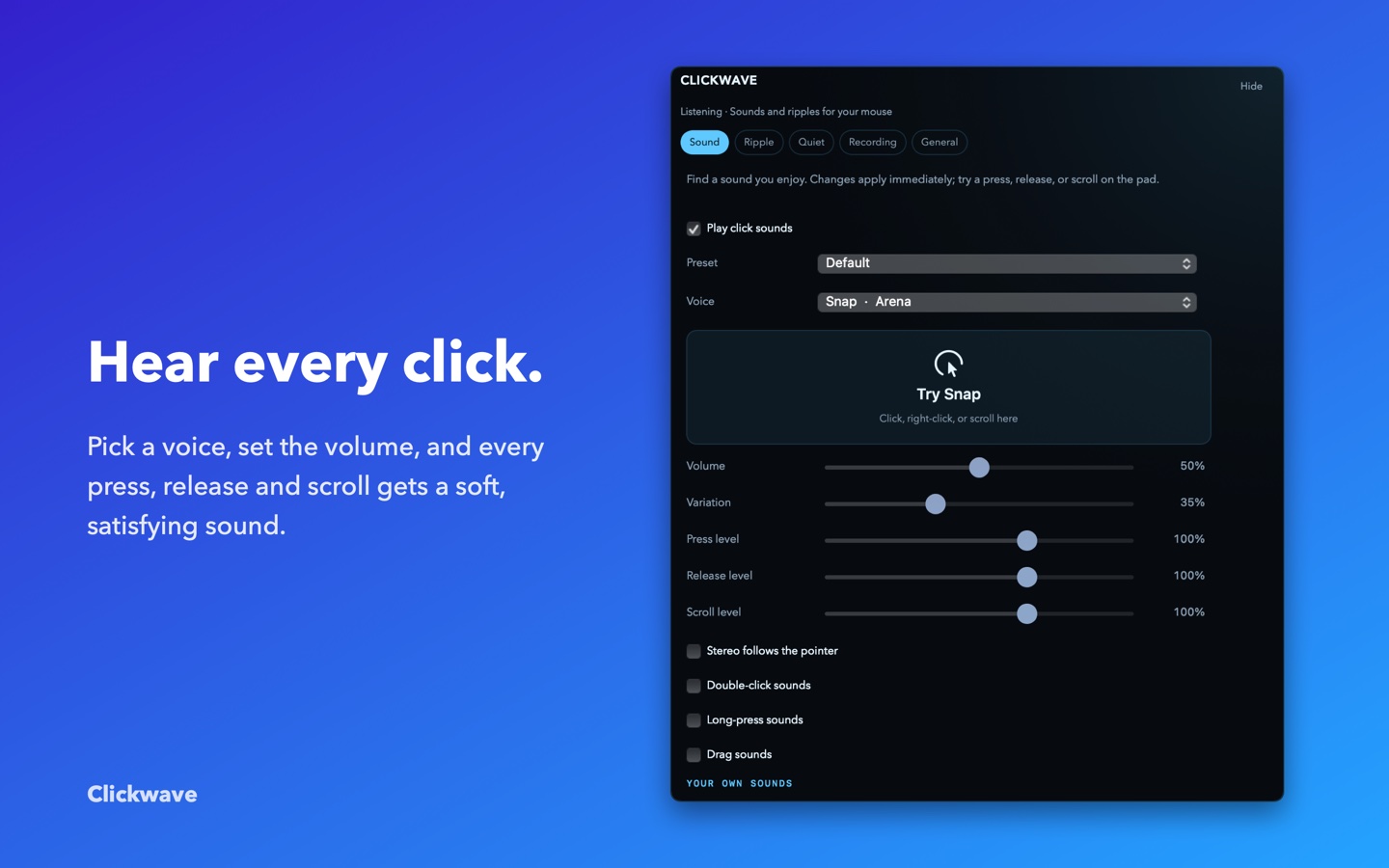
Every click is a press and a quieter release. Set press, release and scroll loudness on their own, plus volume and variation so repeats never sound robotic.
Right-click and other buttons get their own treatment. Double-click, long-press and drag sounds are there when you want them, off until you do.
Click on the left of the screen and you hear it on the left. The sound pans with the pointer.
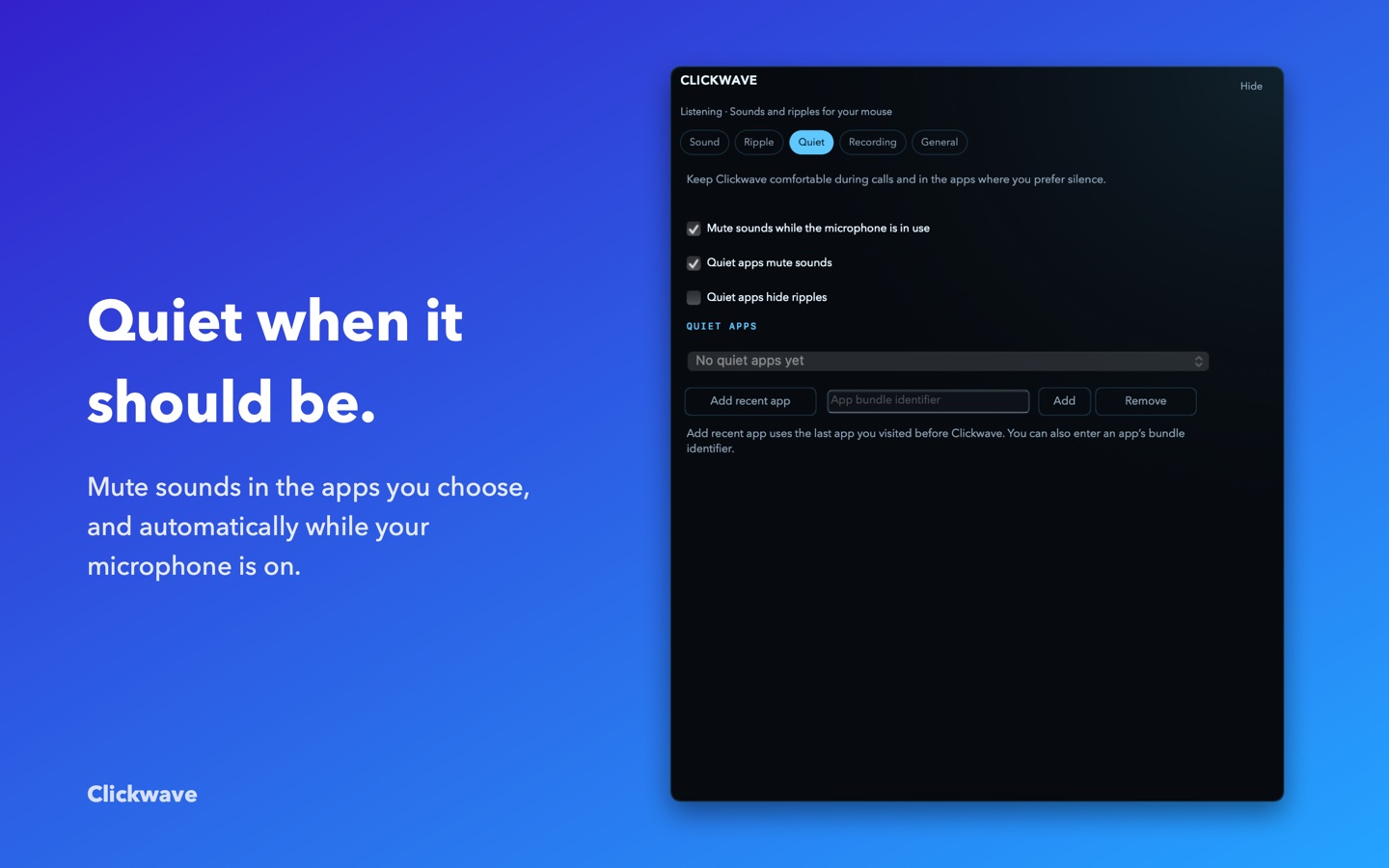
Pick apps where Clickwave stays silent. On the Mac it can also go quiet on its own while the microphone is in use, so calls stay clean.
Import a WAV, AIFF, M4A or MP3 for press, release or scroll. Clickwave trims it, smooths the edges and keeps the original until the new one checks out.
Default, Subtle, Recording, Playful and Quiet. One tap to switch moods, then fine-tune anything.
A menu-bar icon on the Mac, a tray icon on Windows. An optional shortcut turns it on and off.
Screen recording Mac
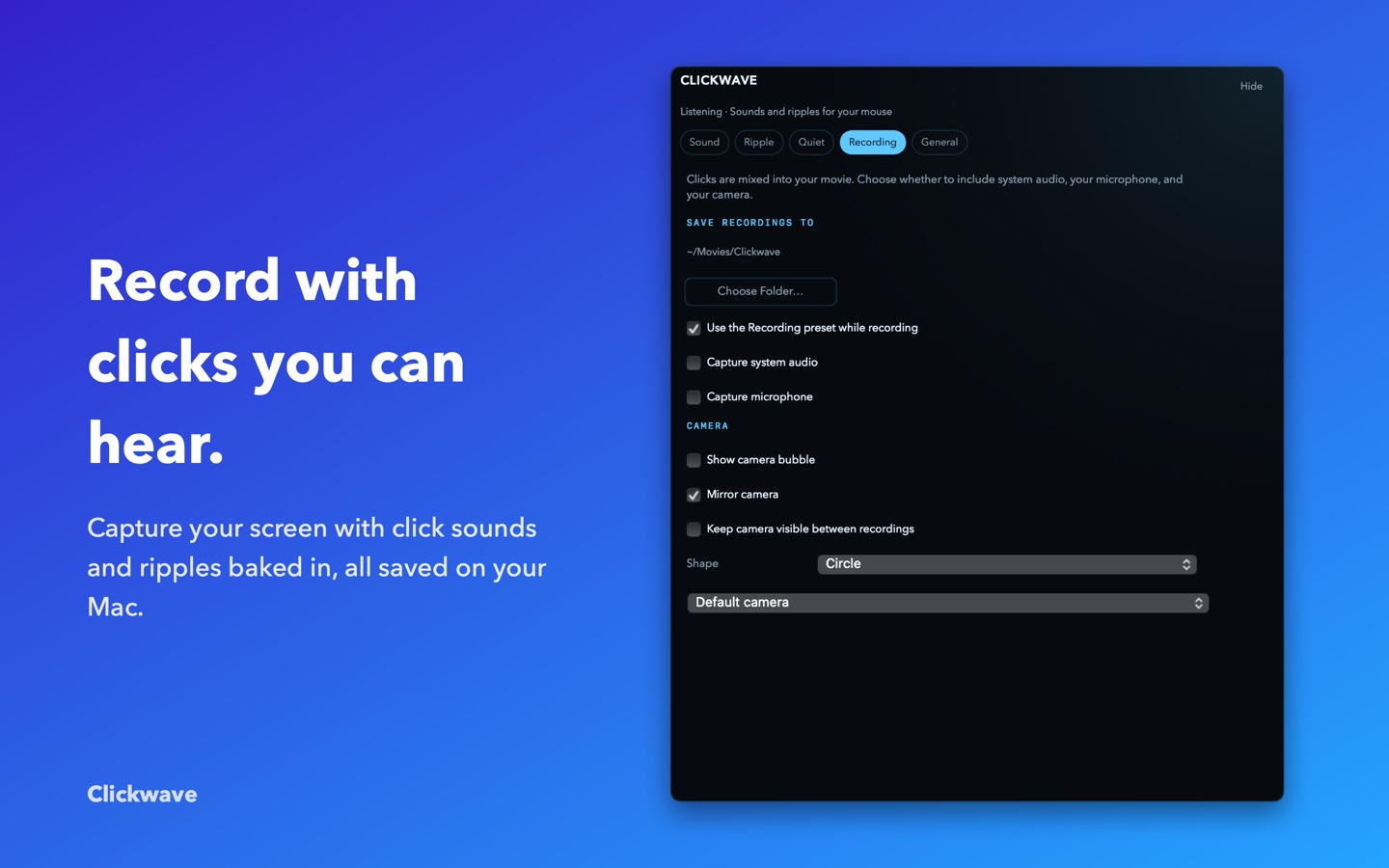
Record the whole screen or drag out an area. Clickwave mixes the click sounds straight into the movie, so viewers hear every click clearly, even when you record with headphones on.
Great for tutorials, bug reports and demos. Recording needs the Screen Recording permission; the sounds alone do not.
Optional extra
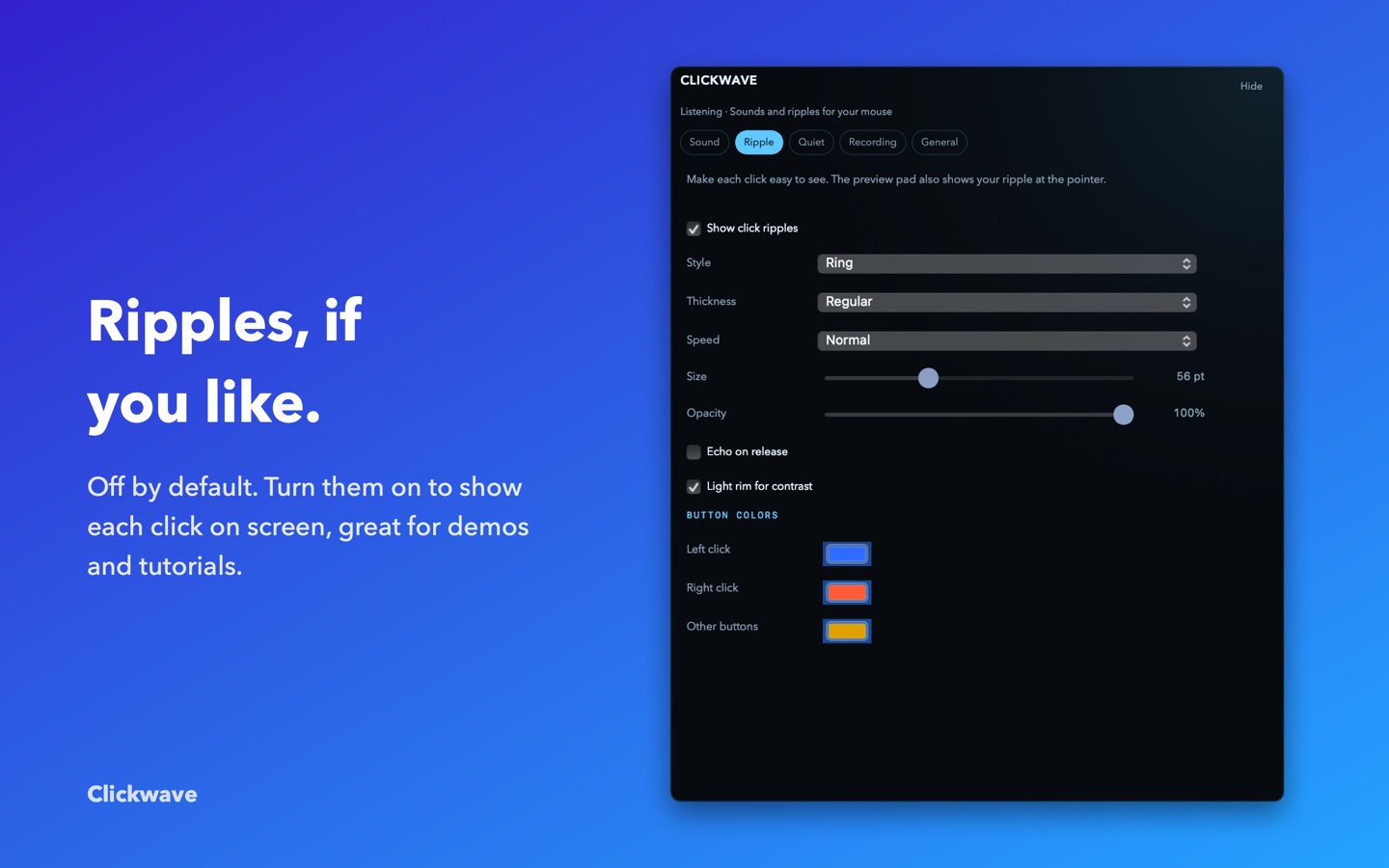
Turn on a ripple ring under the pointer. It is off by default, because the sound is the point, but it is handy for demos and teaching.
Clickwave listens to mouse buttons and scrolling, and nothing else. It never reads what you type. Nothing is uploaded, there is no account, no licence check and no analytics. Your settings stay on your computer.
A look inside
One price, both platforms
No subscription. No account. Yours to keep.
One purchase unlocks both. You get the Mac and Windows downloads either way.
Secure checkout by Stripe. Already bought it? Download again.
macOS 15 or later, Apple silicon or Intel. Asks for Input Monitoring to hear clicks in other apps, and Screen Recording only if you record.
Windows 10 or 11, 64-bit or 32-bit. Installs for your user account, with no permission switches to flip.
Questions
macOS puts mouse and keyboard listening under one permission called Input Monitoring. Clickwave needs it to hear clicks and scrolls that happen in other apps. It only listens to mouse buttons and scrolling. It never reads the keyboard. On Windows a standard mouse hook does the same job, so there is no switch to flip.
Only if you record your screen with Clickwave on the Mac. Click and scroll sounds work without it. The microphone and camera stay off unless you turn them on for a recording.
Nothing. The app has no account, no licence check and no analytics, and it never uploads anything. Settings and stats stay on your computer. The Mac app is signed with an Apple Developer ID.
Yes. The Windows installers are not code-signed yet, so SmartScreen may warn you the first time. Choose More info, then Run anyway. The setup installs for your user account only and does not need admin rights.
macOS 15 Sequoia or later, on Apple silicon and Intel Macs (one universal download). Windows 10 and Windows 11, with separate 64-bit and 32-bit installers.
Yes. Whichever button you press, your purchase unlocks the Mac and both Windows downloads. Use it on your own computers.
Go to Download again and enter the email you paid with plus your order number. The order number is shown on the thank-you page, and the receipt number from the Stripe email works too.
Yes, within 14 days of purchase. Email support@worldofz.info with your order number and we will refund you.